

Make it run every morning
Wire your two connectors, the transformation and the app into a single flow, run the two loads in parallel, give it a 06:00 schedule, and get notified when it fails.
Your table is true this morning, because you ran every step by hand. Tomorrow the forecast has moved on and the table has not. A flow chains your configurations in the order each one needs the last and runs them on a schedule, so the outlook is rebuilt before the first café opens, without you.
Where you are: the pieces work individually, each run by hand. When you finish: one flow that runs them in order every morning and emails you when it breaks.
Three ways to do this, one page. They are alternatives, not steps. Prompt is what you paste into Kai; UI is the same task click by click, for when you want to see where each setting lives; CLI / API is the same task from a terminal, with the raw request beside it. Pick one tab and carry on; your choice follows you to the next page.
Kai asks before it changes anything: expect one approval dialog per object it creates, showing the exact configuration it is about to write. Questions that only read do not ask. If confirming each one gets tiring, pre-approve tools in tool permissions. The chat's plan mode button is a different thing: Kai writes the steps down and asks you to approve the plan before it starts, and then still asks for each change. Use it when you want to read the plan first, not to save clicks.
One thing stays yours either way: the notifications, which come after the tabs and are the same either way.
If a step builds something other than what this page describes, say so in the same chat; it edits what it made. Nothing here is one-way.
Before you start
- A Keboola project. Get a project covers creating or joining one; the Free Plan is enough for this guide.
The two connector configurations from Get your data in.
The transformation from Transform data.
Optionally the app from Put it in front of someone and the destination from Send a table to Google Sheets. Without them the flow has two phases instead of three, which is still a real pipeline.
Phases and tasks
Section titled “Phases and tasks”A flow is a list of phases. Each phase holds one or more tasks: a component configuration to run, a notification to send, a variable to set.
- Tasks inside one phase run in parallel.
- Phases run one after another, and the flow only moves on when a phase is finished.
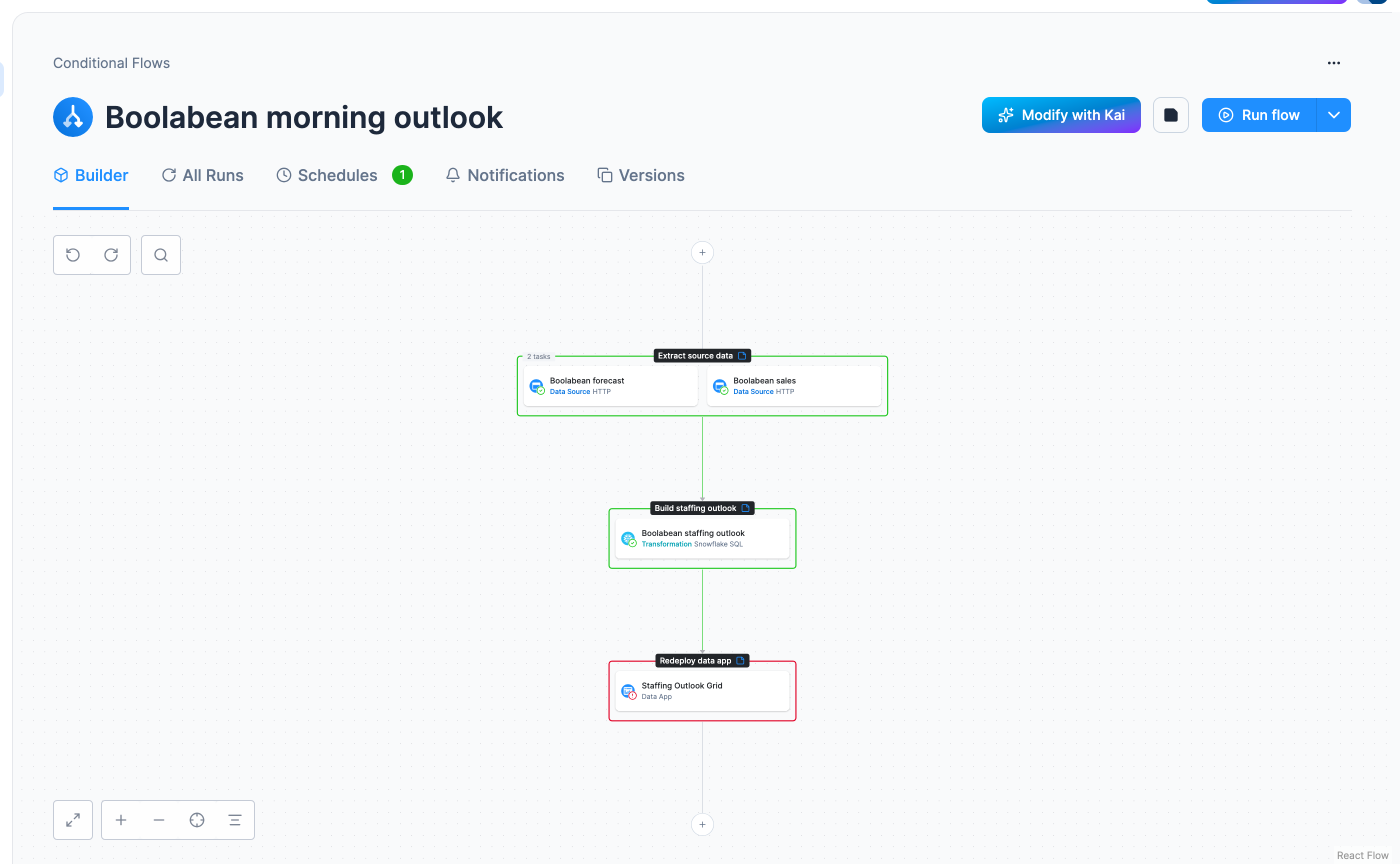
That is the whole model, and it makes the ordering obvious: things that can happen at the same time go in one phase; things that depend on each other go in separate phases. Your pipeline is three phases. The two connectors do not need each other, so they share phase 1 and fetch at the same time. The transformation needs both of their tables, so it is phase 2. The app reads the table the transformation writes, so redeploying it is phase 3, and if you took the spreadsheet side trip, its destination sits in phase 3 as well, for the same reason.
Inside the sales configuration the five files are already fetched by one job. Row-based components like this one can be parallelized internally, and in Jobs you will see that one task fan out into a job per row.
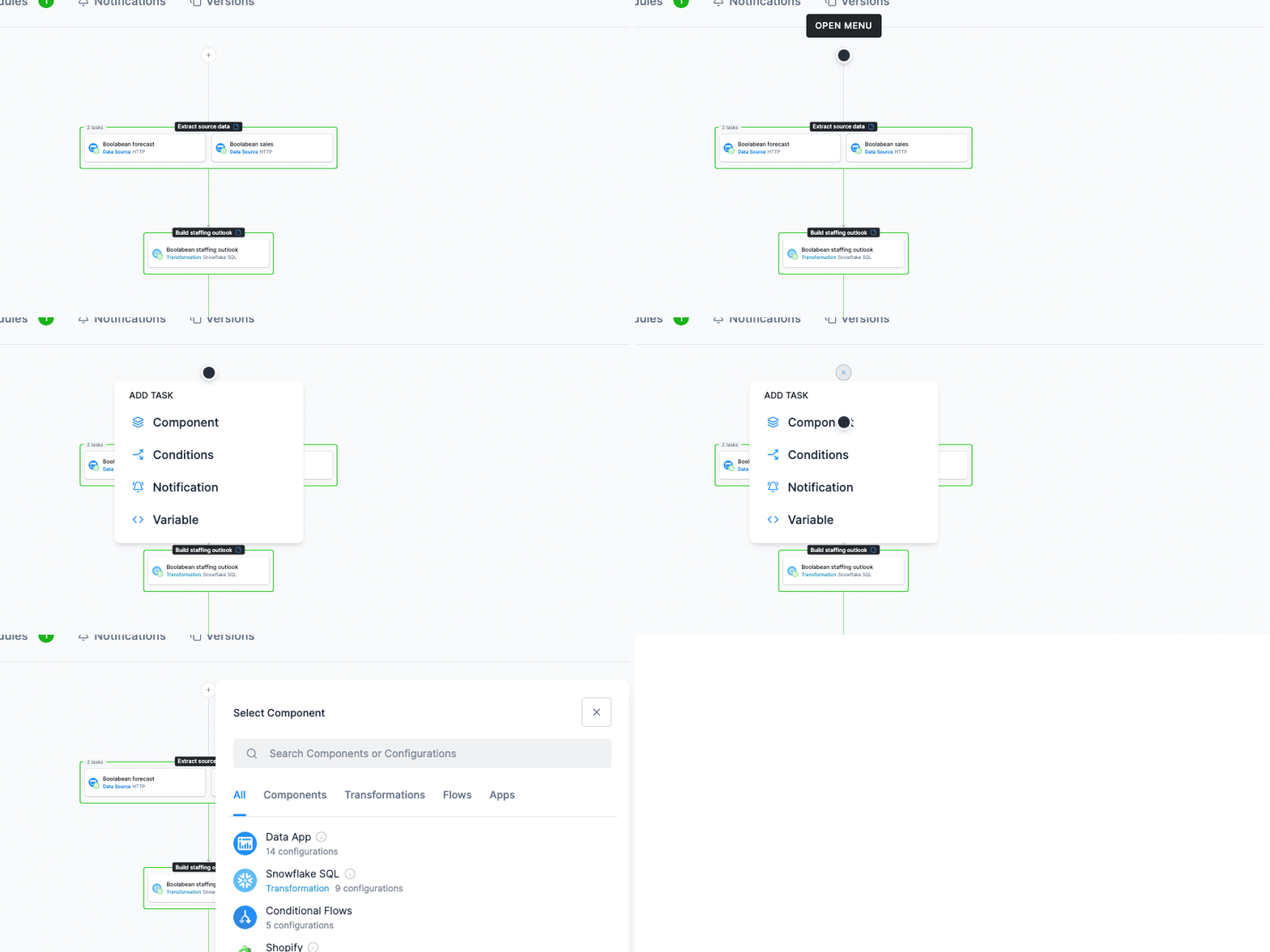
To add a second task to a phase that already has one, hover the phase and click the + in the small toolbar that appears on its top edge. It opens an Add Task menu scoped to that phase (Component, Notification, Variable). The + on the line between phases opens a longer one that also offers Conditions, because a condition sits between phases rather than inside one. Do not confuse it with the + below a phase, which starts a new phase instead. That toolbar belongs to the phase; the one that appears on the card itself is the task’s, and carries Run task and its settings.
Flows can also branch on what happened: retry a task, take a different path on failure, end early. That is conditions, and you need none of it yet.
Set it up
Section titled “Set it up”Building a pipeline out of configurations you already have is a documented Kai job (Complex Workflows), and the Flows section has it wired in: the Create Flow screen opens with a prompt field, and a flow that already has tasks offers Modify with Kai in its header. The same request works from Kai Agent in the top bar, which is where this one was run:
Create a flow called "Boolabean morning outlook" with three phases, in this order:1. Phase 1 runs the two HTTP data source configurations "Boolabean sales" and "Boolabean forecast" in parallel.2. Phase 2 runs the transformation "Boolabean staffing outlook".3. Phase 3 redeploys the data app "Staffing Outlook Grid" so it shows the new table.Then give the flow a schedule: every day at 06:00 Europe/Prague. Then run the flow once now andtell me whether every phase succeeded and how long the run took.Use your app’s own name in the third phase (Kai named ours Staffing Outlook Grid); leave the
phase out if you skipped the app, and add and the "Boolabean outlook to Sheets" destination to it
if you took the spreadsheet side trip. Expect three approvals: the flow, the schedule, the run.
Check: the canvas shows three separate phases, not several tasks in one, with the two connectors side by side in the first. Each later phase needs the previous one’s output, so the split is the whole point. If it came out as one phase, the fix is the one the numbered steps use: switch to the UI tab, where the + below a phase starts a new phase, and move the later tasks there. Then open the flow’s Schedules tab: the schedule Kai set is there, with its timezone, and can be paused with its toggle.
Kai set the schedule because the prompt asked for it. Notifications are still yours, in the flow’s own tab below; they are two clicks, and they are the part people forget exists. A flow nobody gets told about is just a button.
Build the flow
-
Open Flows in the navigation. In projects that have both kinds the section is titled Conditional Flows, which is what these screenshots show. Click Create Flow; on the screen that opens, take Build It Yourself. The prompt field above it is the Kai path from the other tab. Name the flow
Boolabean morning outlookand add a description.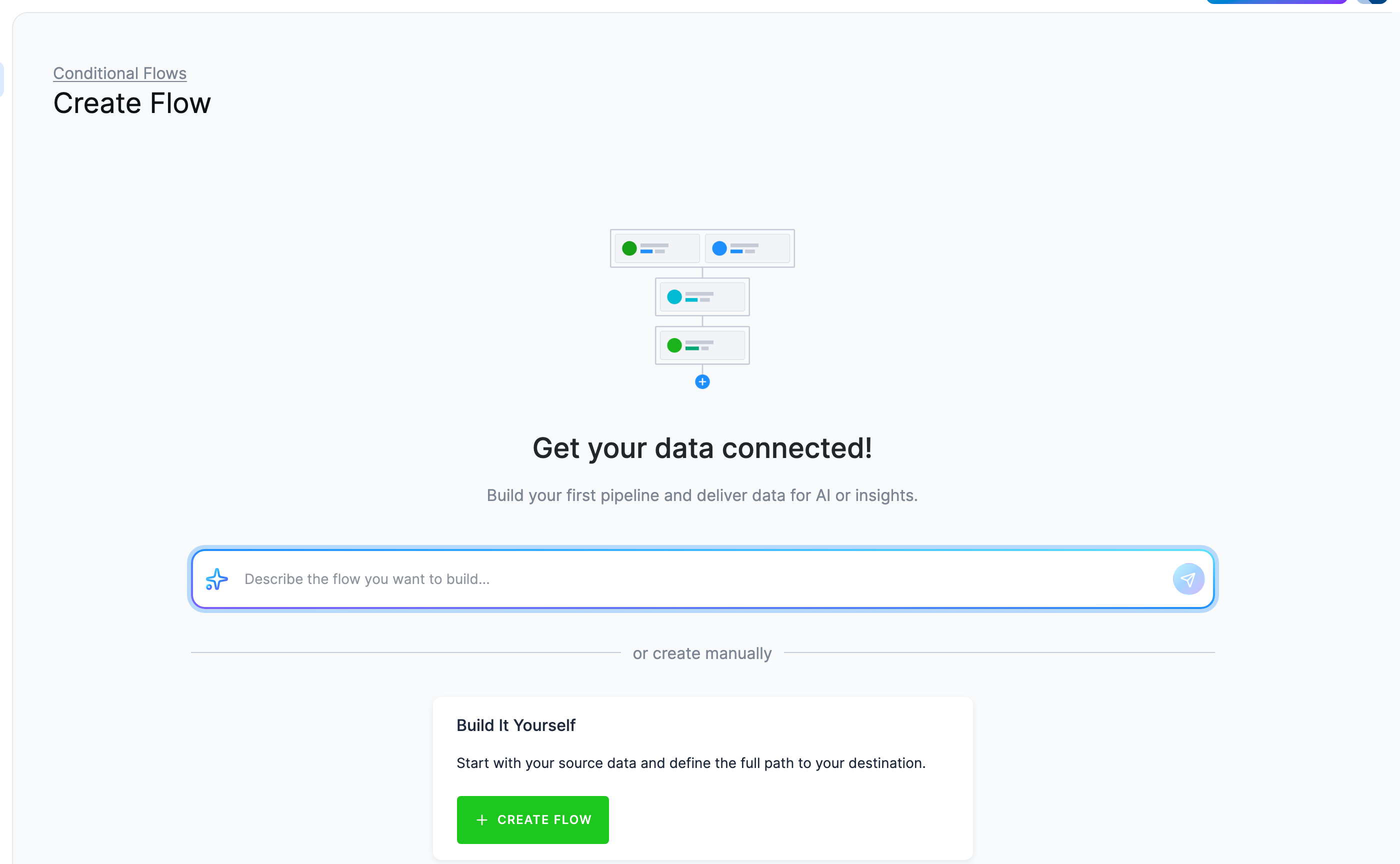
-
You land in the Builder on an empty canvas, with an Add Task menu already open. Choose Component.
-
A component picker opens, listing what the project has, grouped by component with each one’s configurations. Pick HTTP, then the
Boolabean salesconfiguration. It drops onto the canvas as a task inside a box labelled Phase 1. -
Hover Phase 1 and click the + in the toolbar on its top edge, the one that adds a task to this phase. Pick HTTP again, then
Boolabean forecast. The two connectors now sit side by side and will run at the same time. -
Click the + below Phase 1. That is the control that starts a new phase. Add the
Boolabean staffing outlooktransformation there. Being in a later phase is what guarantees both tables have landed before the SQL runs.The finished flow further down shows phases that have been renamed. Yours start life as Phase 1, Phase 2, … until you rename them.
-
If you built the app, click the + below Phase 2 and add the
Staffing Outlook Griddata app to the new phase; a data app is a component like the others and appears in the same picker. If you took the spreadsheet side trip, its destination goes into this phase too. -
Click Save. The Builder keeps your changes as a draft until you do. Save and Reset only appear while there are unsaved changes, and Run flow stays disabled until you save.
You now have three phases: the two loads, then the transformation, then the app.
A flow is a configuration like any other, and kbagent writes it from a YAML file. Run kbagent flow schema
once to see the full format with comments (add --project <alias> --full for the live JSON
schema); the file below is the three phases of this guide.
phases: - id: "extract" name: "Extract source data" next: - id: "default" goto: "transform" - id: "transform" name: "Build staffing outlook" next: - id: "default" goto: "redeploy" - id: "redeploy" name: "Redeploy data app" next: - id: "done" goto: nulltasks: - id: "task-sales" name: "Boolabean sales" phase: "extract" enabled: true task: { type: job, componentId: "keboola.ex-http", configId: "<sales-config-id>", mode: run } - id: "task-forecast" name: "Boolabean forecast" phase: "extract" enabled: true task: { type: job, componentId: "keboola.ex-http", configId: "<forecast-config-id>", mode: run } - id: "task-outlook" name: "Boolabean staffing outlook" phase: "transform" enabled: true task: { type: job, componentId: "keboola.snowflake-transformation", configId: "<transformation-config-id>", mode: run } - id: "task-app" name: "Staffing Outlook Grid" phase: "redeploy" enabled: true task: { type: job, componentId: "keboola.data-apps", configId: "<app-config-id>", mode: run }Two tasks in one phase is the parallelism: both connectors sit in extract, and the phase is done
when both are. goto: null ends the flow.
Where the four IDs come from. The three configId values for the connectors and the
transformation were printed when you created them; kbagent config list --project docs-demo --component-id keboola.ex-http finds them again. The app’s is the one identifier that is not the
number you have been using: kbagent data-app detail --project docs-demo --app-id <app-id> prints
the Storage configuration ID, and that is what a flow task takes.
Check the file before it reaches the project, then create it:
kbagent flow validate --project docs-demo --file @flow.yamlkbagent flow new --project docs-demo --name "Boolabean morning outlook" --file @flow.yamlIt prints the flow’s configuration ID, which the next two commands take as <flow-id>;
kbagent config list --project docs-demo --component-id keboola.flow finds it again.
The schedule is a separate configuration, and one command upserts it:
kbagent flow schedule --project docs-demo --flow-id <flow-id> --cron '0 6 * * *' --timezone Europe/Prague --enabledRun it now rather than waiting for six in the morning:
kbagent job run --project docs-demo --component-id keboola.flow --config-id <flow-id> --waitCheck: the run’s own job and one job per task:
kbagent job list --project docs-demo --component-id keboola.flow --limit 5Notifications have no command; they live in the flow’s Notifications tab, below.
Run it
Section titled “Run it”Coming from the CLI / API tab? job run --wait already did this, and the schedule is already
set. Read on for notifications, which have no command.
If Run flow is disabled, the Builder is still holding your changes as a draft: click Save first. That applies however the flow got built, including when Kai built it for you.
Click Run flow and confirm with Run. A Conditional Flows job has been scheduled notification appears with a Show job link, and while the run is in progress the header offers Terminate flow.
Every task creates its own job, so Jobs tells you exactly which step failed if one does, and the flow’s own All Runs tab shows each run with its phases. Expect the loads to take a couple of minutes and the transformation under one; the app phase is the slow one, because a deploy builds and starts a container.
Set a schedule
Section titled “Set a schedule”Coming from the Prompt or CLI / API tab? The schedule is already there; open the tab to see it, and skip to notifications.
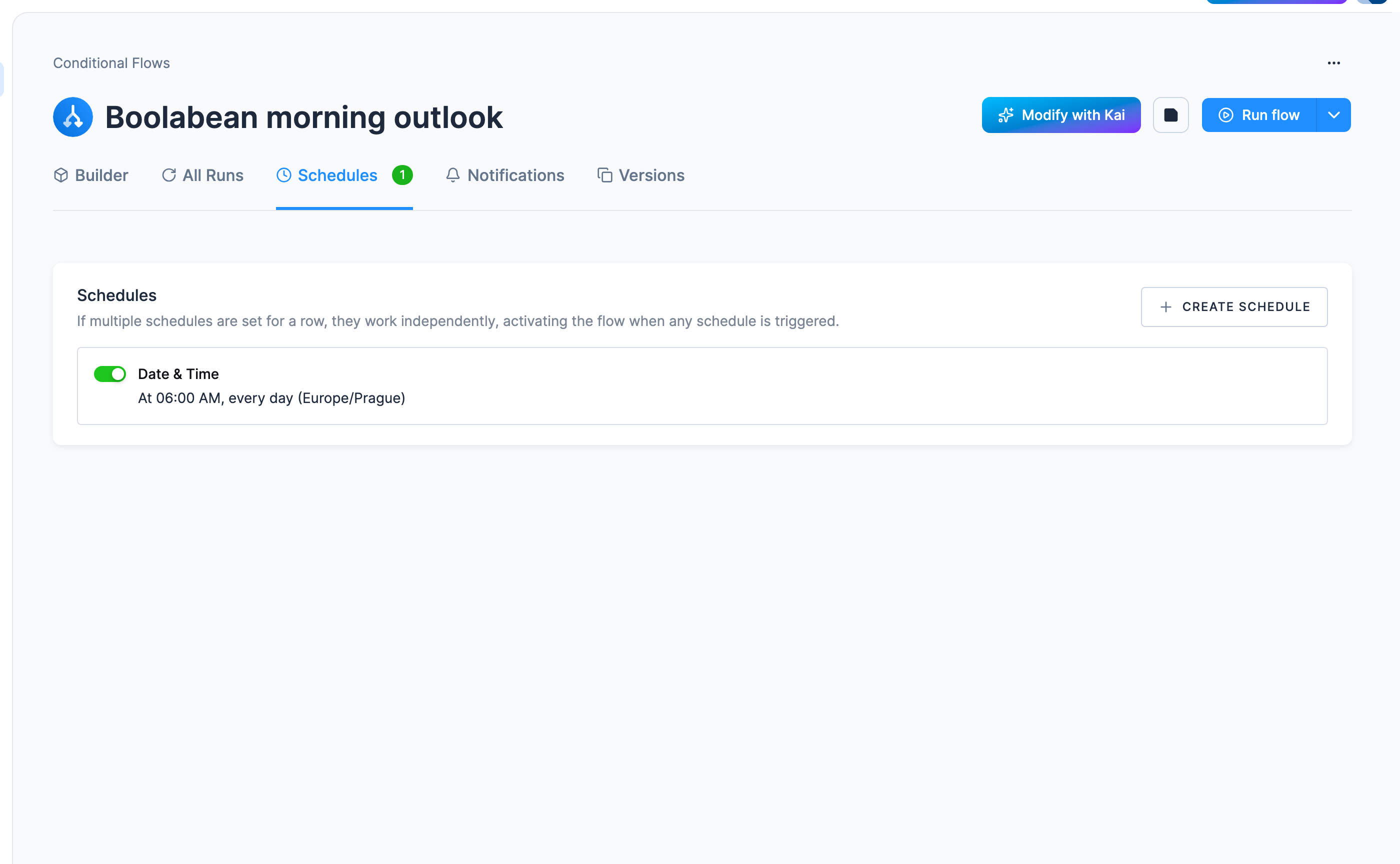
Open the flow’s Schedules tab and click Create Schedule. The predefined intervals are Every 15 minutes, Every hour, Once a day, Once a week and End of month; for a fixed hour use Set Your Own (every day/week/month, at an hour and minute you pick) and set 06:00, before the first café opens. Then click Set Up Schedule.
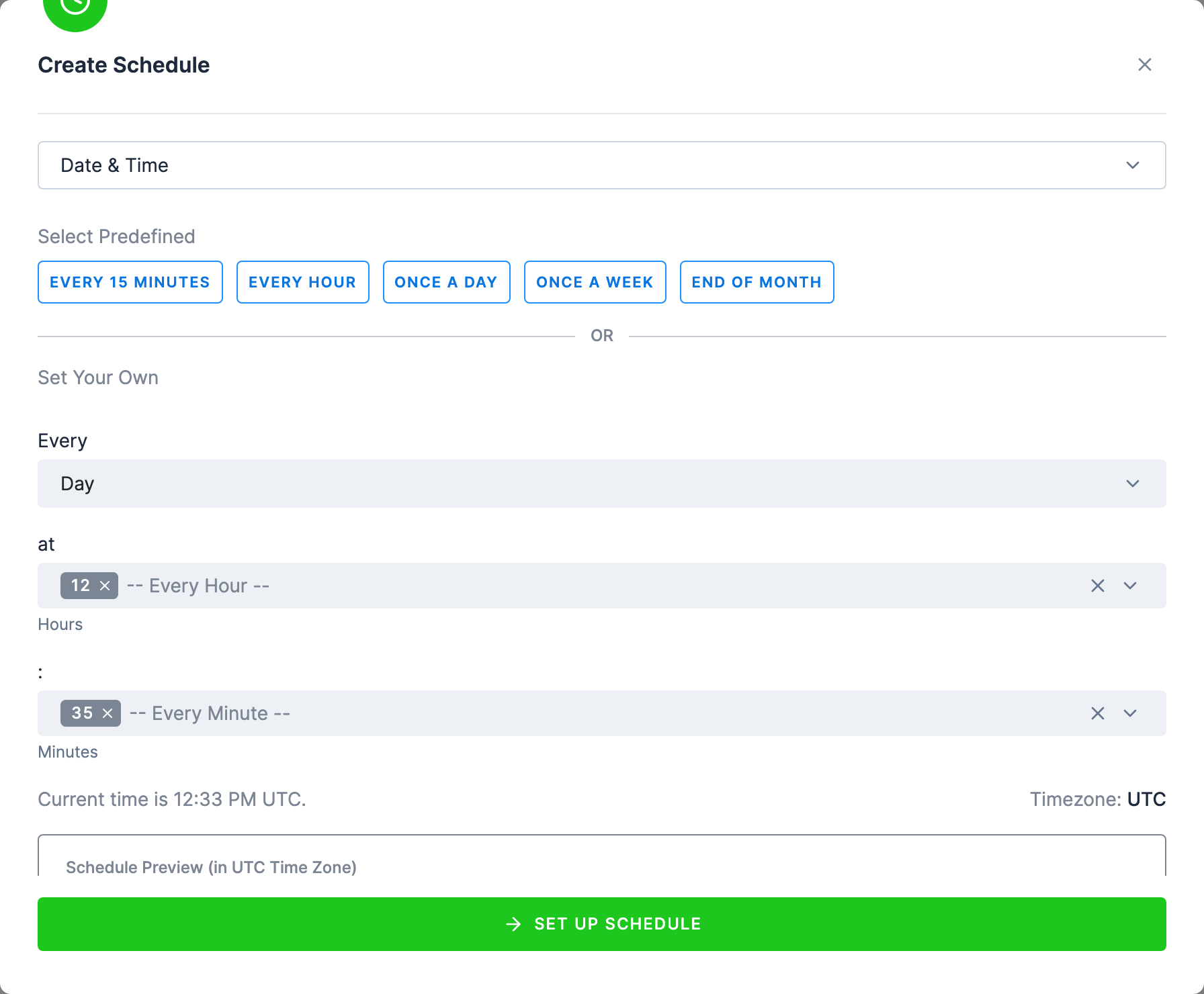
The schedule appears in the tab with a toggle, so you can pause it without deleting it, and the tab shows a count. A flow can hold several schedules: they work independently, and the flow runs whenever any of them fires. Check the timezone the list displays before relying on it; a schedule set by hand may show in UTC, and 06:00 UTC is 08:00 in Prague in summer.
If you share a stack with other projects, scheduling slightly off the hour avoids the busiest moments. A schedule can also be driven by a table changing rather than a clock; see Schedule and Automate.
Get told when it breaks
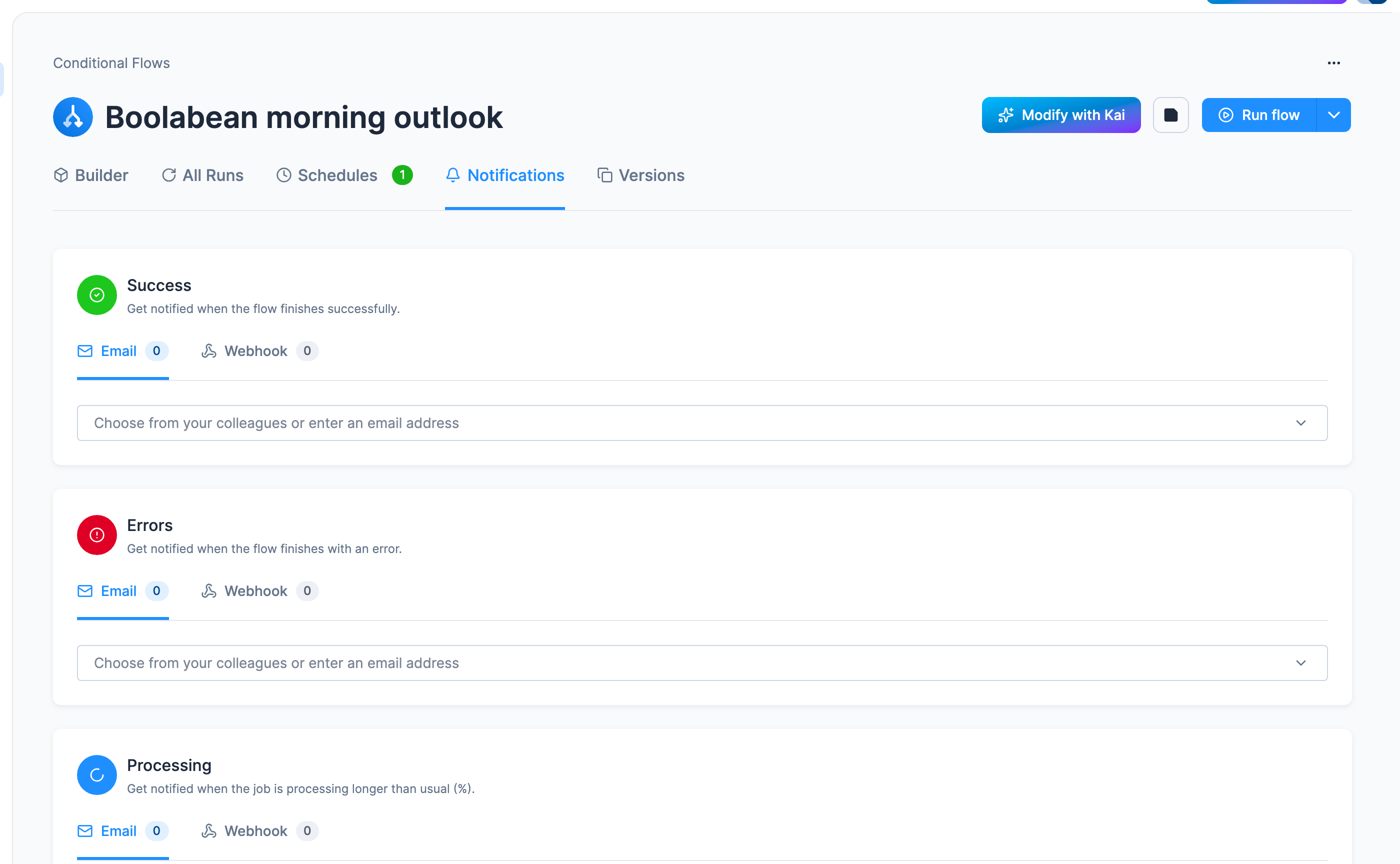
Section titled “Get told when it breaks”An automated pipeline that fails silently is worse than a manual one. Open the flow’s Notifications tab; there is nothing to click into, you edit it in place. Three cards:
| Card | Fires when |
|---|---|
| Success | the flow finishes successfully |
| Errors | the flow finishes with an error |
| Processing | the job runs longer than usual, by a percentage you set |
Each takes Email addresses (pick colleagues or type any address) or a Webhook URL. Fill in Errors at minimum; on a scheduled production flow that is the one setting nobody should skip.
There is a second, finer mechanism: a Notification task placed inside the flow, driven by a condition such as if any task in the flow ended with an error. That is what you reach for when one flow needs different alerts for different failures; these three cards are enough here.
Check it worked
Section titled “Check it worked”The Schedules tab should show a count, and the flow’s All Runs tab a run, with your name against a manual run and scheduled run against the automatic one.
A run can end red and still have done most of its work. Phases run in order, so when the app phase
fails, the two data phases before it have already succeeded and staffing_outlook has already
been rebuilt; the run detail shows exactly which phase stopped. That is the first thing to read
when the Errors email arrives, and Check it worked walks through it.
Tomorrow morning there will be a second run you did not start, on a forecast that has moved by a day.